
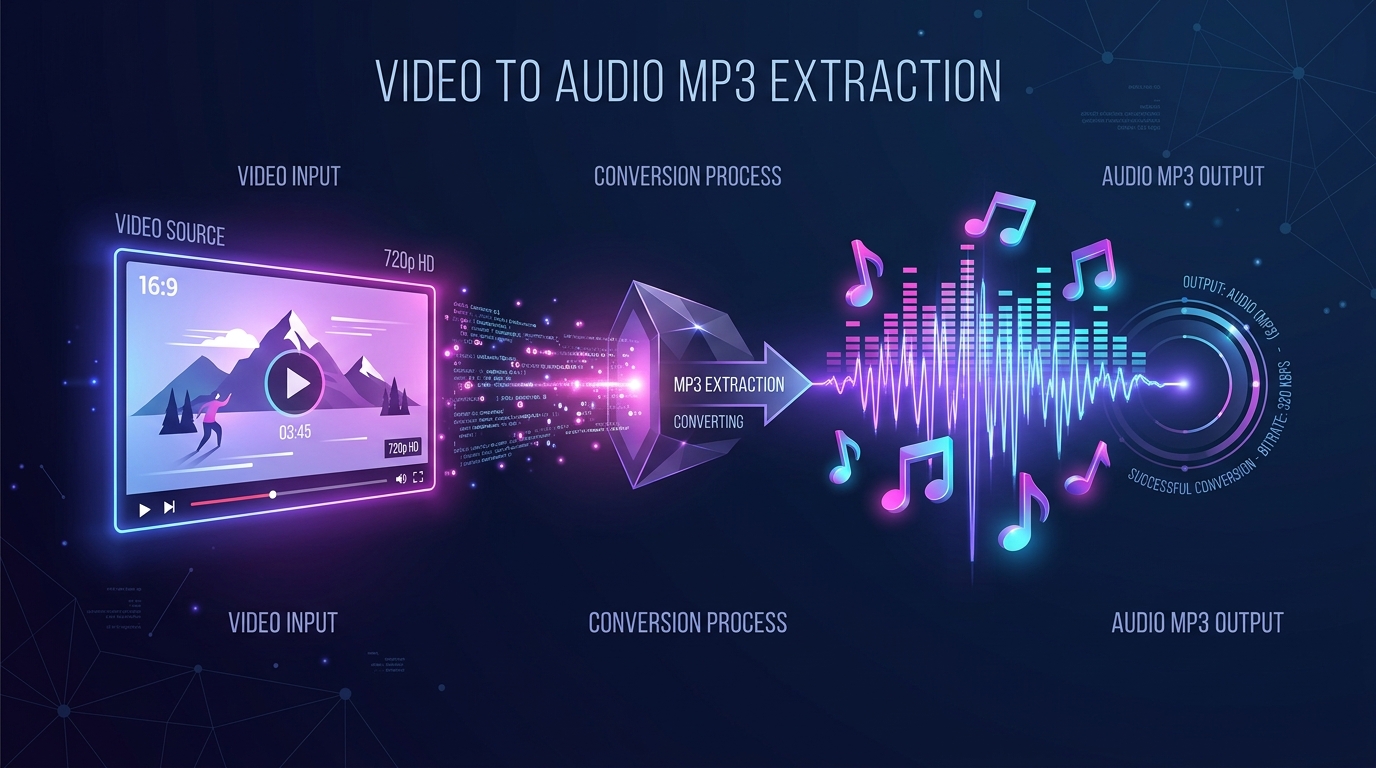
You can extract audio from an Instagram Reel by downloading the public video as an MP4 file and converting the embedded audio track into an MP3 or M4A file on your device. SnapVideo saves public Reels with their original AAC stereo audio synchronized inside the MP4 container. From there, you can extract the audio track in seconds using built-in utilities on your computer or mobile shortcuts.
Whether you want to save an insightful podcast soundbite, an inspiring motivational speech, or a catchy ambient beat for personal offline listening, separating the sound from the video lets you listen without leaving your screen on.
[ẢNH: Diagram showing the audio extraction workflow from Reel URL copy, MP4 download, to audio conversion into MP3/M4A format]
Does SnapVideo download Reels with their original audio track?
Yes. When you paste a public Reel link into our Instagram Reels Downloader, the system retrieves the raw progressive MP4 video stream directly from Instagram's content delivery network.
Inside every valid Instagram video container is an embedded audio track encoded in Advanced Audio Coding (AAC) format. This audio track carries the original sound at bitrates up to 192 kbps in stereo. SnapVideo does not strip, compress, or mute the audio stream during download.
However, keep in mind that if the Reel uses a commercial music track that has been restricted by Instagram in your region, the server may deliver a silent video. Before converting, check our troubleshooting guide on why downloaded Instagram Reels have no audio to verify that your downloaded MP4 file actually contains active sound.
How do you extract audio from an MP4 video on Windows PC?
If you are using a Windows computer, the simplest and safest way to extract audio from an MP4 file is by using VLC Media Player, a trusted open-source media tool that requires no paid subscriptions or sketchy converter software:
- Download the Reel MP4: Paste the Reel URL into SnapVideo and click Download video to save the file to your PC.
- Open VLC Media Player: Click Media in the top menu bar and select Convert / Save (or press Ctrl + R).
- Add Your Video: Click the Add button, locate your downloaded Reel MP4 file, and click Convert / Save at the bottom.
- Choose Audio Profile: In the Profile dropdown menu, select Audio - MP3 or Audio - CD (WAV).
- Set Destination: Click Browse, name your output file (such as
reel-audio.mp3), and select where to save it. - Start Extraction: Click Start. VLC will process the container in seconds and save your pure audio track ready for offline listening.
[ẢNH: Step-by-step visual tutorial showing VLC Media Player Convert/Save audio interface on Windows 11]
How do you extract audio from a Reel on a Mac?
Mac users can extract audio without installing third-party apps by using Apple's built-in QuickTime Player:
- Locate your downloaded Reel MP4 file in Finder.
- Right-click the file, hover over Open With, and select QuickTime Player.
- In the top Apple menu bar, click File and hover over Export As.
- Click Audio Only…
- Name your audio file, pick a destination folder, and click Save.
QuickTime will immediately export the audio track as an Apple-native M4A (AAC) file. M4A files play natively in the Apple Music app, QuickTime, and across all iOS devices with crystal clarity.
How do you convert a Reel video to audio on iPhone and iPad?
On iOS devices, you do not need to download ad-heavy converter apps from the App Store. Apple's native Shortcuts app can extract audio directly from any video stored in your Photos or Files app:
Creating a Quick Audio Extraction Shortcut:
- Open the Shortcuts app on your iPhone.
- Tap the + (plus) icon in the top right to create a new shortcut.
- Tap Add Action, search for Select Photos, and add it. Change the filter to only select Videos.
- Tap the search bar at the bottom, search for Encode Media, and add it. Tap the arrow next to Encode Media and toggle on Audio Only (choose Format: M4A or AIFF).
- Search for Save File or Share to store the exported audio file into your Files app or iCloud Drive.
- Name your shortcut "Extract Audio" and save it.
Now, whenever you download a clip through our Instagram Video Downloader and save it to your camera roll, you can tap your shortcut, pick the video, and receive an instant audio file in your Files app.
[ẢNH: Screenshot walkthrough of the iOS Shortcuts app workflow configuring the 'Encode Media - Audio Only' action]
How do you trim or enhance extracted Reel audio using free tools?
If you only need a specific 5-second punchline or sound effect from a 60-second Reel, you can trim and clean the audio using Audacity, a free, open-source audio editor available for Windows, Mac, and Linux:
- Install Audacity and FFmpeg: Download Audacity from its official website. If you plan to import MP4 files directly, install the free FFmpeg library addon so Audacity can read MP4 video tracks directly.
- Import the Video File: Drag and drop your downloaded Reel MP4 file directly into the Audacity window. Audacity will automatically extract the AAC audio stream and display the waveform on your screen.
- Select and Cut: Highlight the section of audio you want to keep using your mouse cursor. Click Edit > Remove Special > Trim Audio (or press Ctrl + T) to delete everything outside your selection.
- Export Clean Audio: Click File > Export > Export as MP3 or Export as WAV. Choose your preferred bitrate (192 kbps or 320 kbps) and save the file.
This is especially helpful for content creators organizing voice reference libraries or personal soundboard collections without cluttering storage with full video files.
Can you use extracted audio tracks in your own content?
It depends strictly on the copyright ownership of the sound. While saving audio for personal, offline listening is generally considered fair personal use, republishing or reusing someone else's audio track comes with important legal boundaries:
- Original Voiceovers and Speeches: The intellectual property rights belong exclusively to the original creator. You cannot re-upload their speech, comedy skit, or interview as your own sound without explicit permission.
- Commercial Music: Popular songs used in Reels are copyrighted by record labels and artists. Using extracted commercial audio in your own videos on YouTube, TikTok, or commercial projects can trigger copyright strikes, video mutes, or demonetization.
- Royalty-Free Sounds: If the creator explicitly declared the sound to be Creative Commons or public domain, check the specific attribution requirements before including it in creative projects.
Always respect creators' intellectual property rights and ask for permission before using downloaded audio in public or commercial settings.
Frequently Asked Questions
What is the audio quality of an extracted Reel sound?
Audio extracted from an Instagram Reel typically features an AAC bitrate between 128 kbps and 192 kbps sampled at 44.1 kHz. This provides high-clarity voice and music reproduction, perfectly suited for headphones, car audio systems, and personal listening.
Does converting MP4 to MP3 reduce audio clarity?
If you convert the native AAC audio inside the MP4 container into an MP3 file at 192 kbps or 320 kbps, the acoustic difference is virtually undetectable to human ears. However, converting directly to M4A (which retains the original AAC codec without transcoding) preserves the exact bitstream without any conversion loss.
Can I download audio directly from Instagram without downloading the video first?
Instagram does not provide standalone public audio download endpoints for Reels. The audio stream is muxed directly inside the MP4 video container. Downloading the MP4 through SnapVideo and extracting the audio locally is the fastest, safest, and most reliable method.
Is SnapVideo safe to use for Reel downloads?
Yes. SnapVideo operates entirely through standard web browser protocols. It does not ask for your Instagram account credentials, install browser extensions, or collect personal data.