
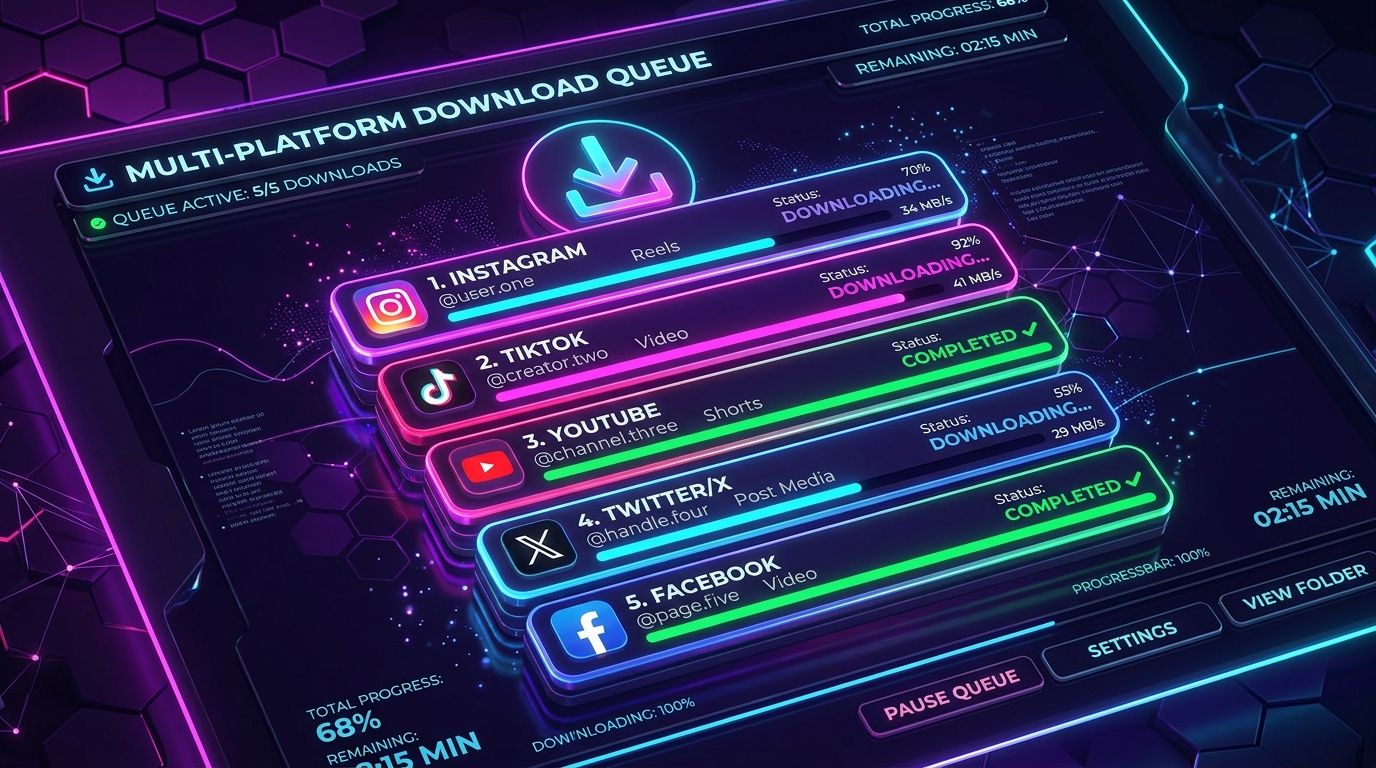
You can download multiple Instagram videos, Reels, and photos simultaneously by using SnapVideo's bulk downloader mode, which accepts up to five separate links in a single queue. Instead of pasting links one by one and waiting for each page reload, paste your URLs into the multi-line input box—one link per line—and click Download. SnapVideo processes all links concurrently and provides a unified list of media files ready to save.
Whether you are archiving a series of recipe tutorials, gathering design references for a moodboard, or backing up your favorite holiday memories, batch processing saves you repetitive clicks.
[ẢNH: Visual infographic showing a multi-line input box taking 5 distinct Instagram URLs and expanding into an organized batch download queue]
Why is downloading Instagram links one by one inefficient?
On standard single-link download tools, saving five or ten posts requires a repetitive, manual cycle:
- Open Instagram, copy the first URL, switch to the downloader website, and paste the link.
- Wait for the server to resolve the media payload.
- Click download, wait for the file transfer to complete, and refresh or clear the input field.
- Repeat the exact same sequence for every subsequent post.
When you have multiple items to save, this repetitive switching consumes unnecessary time and increases the likelihood of copying duplicate URLs.
Our Bulk Instagram Downloader solves this bottleneck by introducing a multi-line batch queue. You can gather up to five links from Instagram in one browsing session, paste them all into the field at once, and let our engine query the media graph concurrently.
How do you format and submit links in the batch downloader?
Submitting a batch queue on SnapVideo takes only a few seconds:
- Collect Your Instagram Links: Browse Instagram and copy the URLs for the posts, Reels, or carousels you want to save (up to 5 links per batch).
- Open the Bulk Downloader: Navigate to SnapVideo Bulk Mode.
- Paste One Link Per Line: In the multi-line input field, paste your URLs. Ensure each link sits on its own line:
https://www.instagram.com/reel/C8XYZ123/ https://www.instagram.com/p/C9ABC456/ https://www.instagram.com/p/C7DEF789/ - Click Download: Tap the purple Download button. SnapVideo will initiate parallel queries for all submitted URLs.
- Download Your Files: As each link resolves, preview cards appear with file format badges and direct Download video, Download image, or Download ZIP buttons.
If you only have a single photo or Reel to save, using our primary Instagram Downloader is faster and requires no line formatting.
[ẢNH: Screenshot of SnapVideo's bulk downloader interface displaying 5 active progress cards with green checkmark status badges]
Can you mix different Instagram media types in the same batch?
Yes. The batch engine is completely format-agnostic. You do not need to separate video links from photo links or run independent queues for Reels.
Within the same 5-link batch, you can combine:
- Vertical Reels: Resolved as standard progressive MP4 files with synchronized audio.
- Feed Videos: Extracted in high-definition MP4 format ready for offline playback.
- Single Photos: Downloaded as clean, full-resolution JPEG files.
- Multi-Slide Carousels: Displayed with options to save individual slides or download the entire album as a packaged ZIP file. If you work heavily with multi-photo albums, read our guide on how to download all photos and videos from Instagram carousel posts.
Each media item is clearly labeled so you can identify exactly what you are saving before clicking download.
What happens if one of the links in your batch fails?
In a multi-link batch, it is common for one link to encounter an error (for example, if the creator set the account to private or deleted the post right after you copied the URL).
SnapVideo isolates errors on a link-by-link basis:
- Valid Links: All healthy public links will resolve normally, displaying their media preview cards and download buttons.
- Failed Links: If a link cannot be retrieved, SnapVideo flags that specific URL with a clear error notice (such as "Could not load this post").
- No Progress Loss: A single failed link will never cancel, freeze, or interrupt the other valid downloads in your queue.
To learn why specific Instagram links return errors and how to clean tracking parameters, check our troubleshooting guide on how to fix invalid Instagram URL download errors.
[ẢNH: Diagram showing a 5-item batch queue where 4 links succeed with green badges and 1 link shows a isolated red error state without disrupting the batch]
How can you prevent mobile browser crashes when running batch downloads?
Smartphones have strict memory (RAM) management rules for mobile browsers like Safari on iOS and Chrome on Android. When you trigger multiple simultaneous high-definition video downloads, mobile operating systems can sometimes automatically refresh the tab to reclaim memory:
- Download Items Sequentially on Low-RAM Phones: Instead of tapping all five download buttons simultaneously within half a second, tap the first download button, wait for the browser progress bar to finish, and then tap the next. This prevents your phone's temporary memory cache from bottlenecking.
- Close Unused Browser Tabs: If you have 40 background tabs open in mobile Safari or Chrome, close a few tabs before processing a 5-link media batch. This frees up operational memory for handling MP4 video streams.
- Use Desktop for Heavy Video Queues: If you frequently batch-download dozens of high-bitrate Reels or extensive video posts, completing your workflow on a desktop computer with a high-speed broadband connection is significantly faster and gives you direct access to multi-file sorting in File Explorer or Finder.
How can you download more than five posts?
While each individual batch run is capped at 5 links to prevent browser memory exhaustion and avoid Instagram CDN rate-limits, you can process as many consecutive batches as you need:
- Once your first 5 links have finished processing and downloading, click the Clear or Download another batch button at the bottom of the page.
- The queue resets instantly.
- Paste your next set of up to five links and click Download.
This sequential batch approach gives you high efficiency while ensuring your browser stays fast and responsive, especially on mobile devices. If you are downloading video clips on an iPhone, review our guide on how to save Instagram videos to iPhone Camera Roll for tips on organizing saved files into albums.
Frequently Asked Questions
Why is the batch queue limited to 5 links?
Limiting each batch to 5 links protects against network timeouts and prevents Instagram's CDN servers from throttling your IP address. Processing five posts simultaneously provides significant time savings while maintaining reliable delivery.
Can I download private Instagram posts in bulk?
No. Bulk processing only works with public Instagram URLs. Private posts require an authenticated view-source workflow that cannot be batched across public queues.
Do batch downloads maintain full original quality?
Yes. Every video, photo, and carousel extracted through bulk mode retains the exact resolution, bitrate, and format served by Instagram's CDN servers. SnapVideo does not re-compress files during batch extraction.
Does SnapVideo store the links I submit in a batch?
No. All batch queries are processed in real time in your browser session. SnapVideo does not save your search history, log submitted URLs, or create user profiles.