
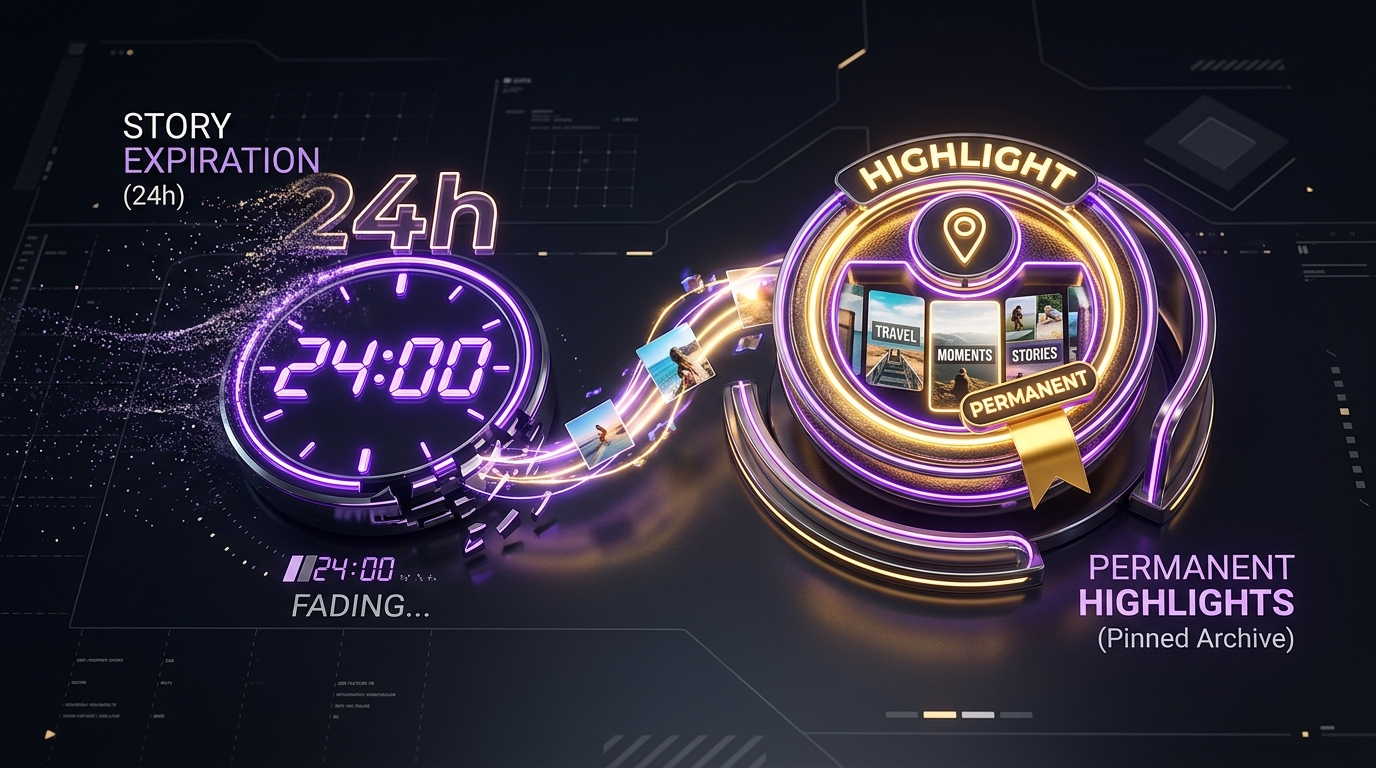
Standard Instagram Stories cannot be downloaded once their 24-hour expiration window closes because Instagram removes them from the public distribution network. However, if the account owner saved those Stories into a permanent profile Highlight, you can still view and download them at any time. Pinned Highlights remain accessible on public profiles indefinitely.
Instagram Stories were built around the concept of ephemeral sharing—quick, casual updates that disappear into the digital ether after a single day. But when a creator captures a major milestone, a culinary recipe, or a travel guide, losing that content forever is frustrating. This guide explains how Instagram's Story lifecycle functions and how you can save both active Stories and permanent Highlights.
[ẢNH: Visual timeline contrasting ephemeral 24-hour Stories disappearing from the tray versus permanent Highlights pinned below profile bios]
Can you download an Instagram Story after the 24-hour window has passed?
No web tool can retrieve a standard, standalone Instagram Story once the 24-hour timer has expired if the creator did not save it into a Highlight album.
Here is the technical reality of what happens when a Story expires:
- Feed Deprecation: When the clock hits 24 hours, Instagram's database automatically flags the Story item as expired. It is immediately removed from the creator's profile avatar ring and the follower story trays.
- CDN Invalidation: Instagram revokes the public access tokens that pointed to the media file on its Content Delivery Network. The media URL transforms into an invalid
404 Not Foundor403 Forbiddenresponse. - Private Archiving: The raw video or image file is moved into the creator's private internal archive, accessible only to the account owner through their private app settings.
Any third-party website claiming that it can "magically recover expired Instagram Stories from any account" is either promoting deceptive clickbait or attempting to harvest user login credentials. If an unpinned Story has expired, it is permanently gone from the public web.
How do Highlights make expired Stories permanently downloadable?
Story Highlights provide the one permanent exception to the 24-hour rule. When an account owner adds an active or archived Story to their profile Highlights, Instagram creates a permanent public reference to that media item.
Key differences between Stories and Highlights:
- Location: Regular Stories appear only inside the avatar ring or top story tray. Highlights sit permanently as circular album bubbles directly below the creator's bio and follower counts.
- Lifespan: Active Stories vanish after 24 hours. Highlights remain online for weeks, months, or years until the creator manually deletes them.
- Custom Album Covers: Creators can assign dedicated cover icons to their Highlights, organizing content into themed categories like "Travel", "Q&A", "Events", or "Recipes".
Because Highlights remain publicly published, our Instagram Highlights Downloader can query the profile's public data graph, unpack every individual slide in the collection, and provide direct MP4 and JPEG download links.
[ẢNH: Screenshot of an Instagram profile page highlighting the circular Highlight album bubbles beneath the bio]
How do you save an entire Highlight album to your phone or PC?
Downloading media from a public profile's Highlights takes just a few simple steps:
- Locate the Highlight Link or Profile Username:
- Open Instagram and navigate to the target profile.
- Tap on the Highlight bubble you wish to save.
- Tap the three dots (⋯) or Share icon on the slide and tap Copy link.
- Alternatively, you can simply copy the account's username (such as
@natgeo).
- Paste into SnapVideo: Open SnapVideo Highlights Saver, paste the link or username into the search bar, and click Download.
- Select Your Slides: SnapVideo will display all discovered photos, video clips, and the custom album cover. Click Download video for video slides or Download image for photos to save the files directly to your device storage.
If you are saving active Stories that were posted within the last 24 hours, use our dedicated Instagram Story Downloader instead.
Can you download custom Highlight cover images?
Yes. Creators often design sleek, artistic cover icons for their Highlight bubbles (such as minimalist line art, custom typography, or branded logos). Inside the mobile app, these icons cannot be enlarged.
When you submit a Highlight link or profile handle into SnapVideo:
- The system extracts the master cover asset alongside the story slides.
- You can preview the cover artwork in its uncropped, full-resolution square format.
- Click Download image on the cover card to save the graphic directly to your device.
If you want to view and save the creator's primary account avatar at maximum resolution, check out our guide on how to view and download full-size Instagram profile pictures.
[ẢNH: Side-by-side graphic showing a small circular Highlight cover badge expanding into a crisp 1080px square source graphic]
Why do some Highlight slides show black screens or fail to load?
Occasionally, when inspecting or saving an older Highlight album, you might encounter a slide that displays a solid black frame or returns an extraction error. This occurs due to specific platform mechanics:
- Licensed Audio Invalidation: If the creator used a copyrighted commercial song on that story slide two years ago and the platform's distribution license has since lapsed, Instagram may mute or block public streaming for that specific slide.
- Third-Party Sticker Attachments: Story slides that relied heavily on dynamic interactive widgets (such as live countdown timers, polls, or external link stickers) sometimes fail to render cleanly in standard video decoders when archived for long periods.
- Heavy Account Traffic: Profiles with millions of followers frequently experience aggressive edge caching by Instagram. If our tool encounters a temporary cache miss on an older slide, waiting 15 to 30 seconds and re-submitting the profile handle will allow the CDN edge node to warm up and serve the missing asset.
If you suspect that an entire account or collection of links has become inaccessible, check our guide on how to fix invalid Instagram URL download errors for quick diagnostics.
What quality are downloaded Stories and Highlights?
Instagram optimizes Stories and Highlights for vertical mobile screens (9:16 aspect ratio). When you download through SnapVideo, files are delivered in the highest quality tier that Instagram provides:
- Video Clips: Delivered in standard MP4 format at resolutions up to 1080x1920 with full synchronized stereo audio.
- Photos: Delivered in standard JPEG format at resolutions up to 1080x1920.
SnapVideo does not re-compress, downscale, or inject visual watermarks into the downloaded files. If you encounter an unexpected error when submitting a link, read our troubleshooting guide on how to fix invalid Instagram URL download errors.
Frequently Asked Questions
Does the creator know if I download their Story or Highlight?
Instagram does not send download notifications when you save a public Story or Highlight. However, platform tracking rules and backend APIs can evolve, so we do not promise absolute or permanent anonymity.
Why does a Story link show "No active stories found"?
This message means that the account has not posted any new Story slides within the last 24 hours, the account is private, or the post was shared exclusively with a private "Close Friends" list.
Can I download Highlights from a private account?
No. Highlights from private profiles cannot be accessed by public web downloaders because Instagram restricts media tokens to approved followers only.
Is the Story and Highlights downloader free on SnapVideo?
Yes. Our tools are completely free to use without subscriptions, paywalls, or account registration on Instagram Downloader.