
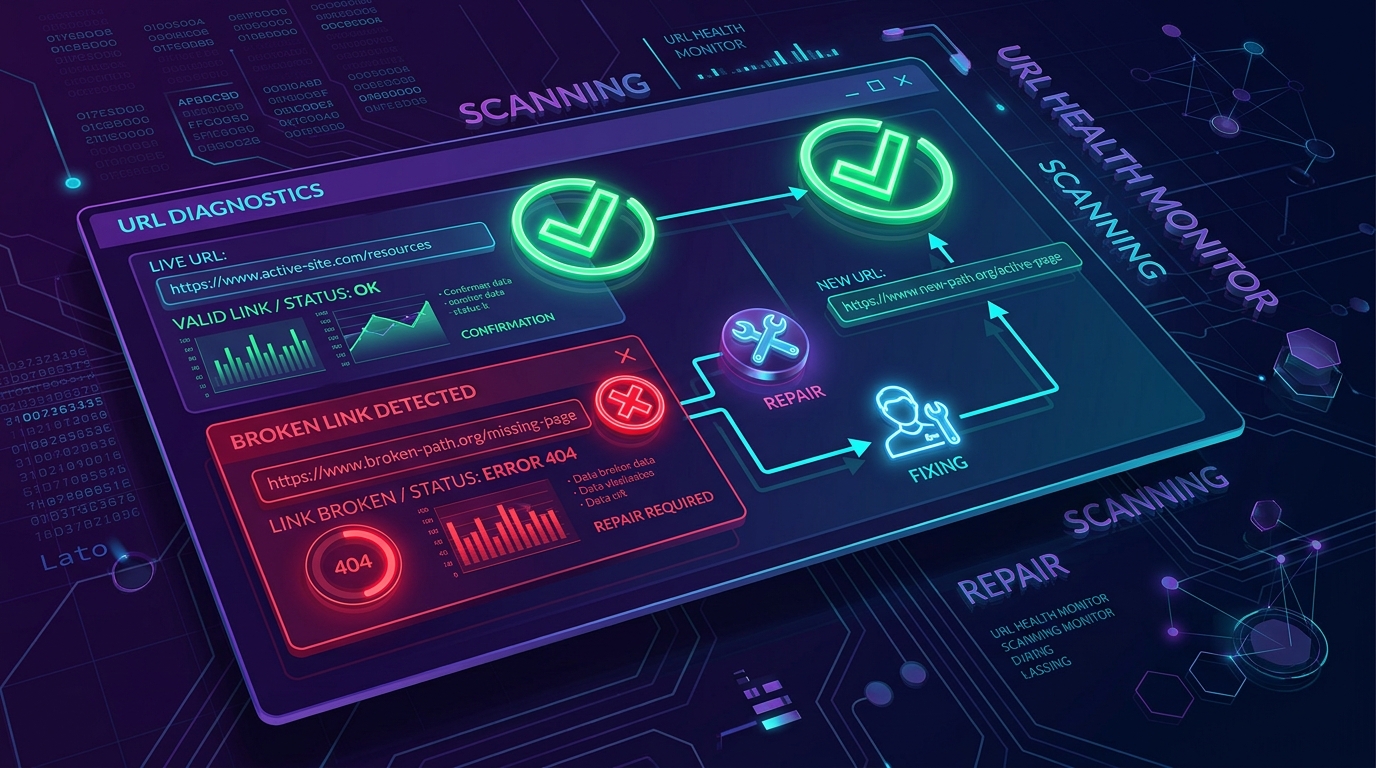
When an Instagram download link fails with an error, the reason is almost always that the post is private, has been deleted, is restricted by region or age, or was a Story that expired after 24 hours. To verify if a post can be saved, open the link in a private or incognito browser window without logging into Instagram. If the content does not load publicly there, public web downloaders cannot access it.
Paste-and-download tools rely on direct communication with Instagram's public Content Delivery Network (CDN). When Instagram blocks or invalidates a URL, the tool cannot retrieve the media stream. This troubleshooting guide covers the most frequent causes of failed downloads and gives you practical steps to resolve them.
[ẢNH: Diagnostic checklist showing common link error states: Private Account, Expired Story, Tracking Code Bloat, and Deleted Media]
Why does SnapVideo show a "Post not found" or "Unavailable" message?
When our downloader displays a message saying "Could not load this link" or "No files available", Instagram's servers returned a 404 (Not Found) or 403 (Forbidden) response to our query. The four most common triggers are:
1. The account is set to Private
Public web downloaders can only access content that is openly accessible on the web without logging into an account. If a creator changes their account privacy setting to Private, Instagram immediately revokes public access tokens. Only approved followers can view the post inside the Instagram app or on their authenticated web session.
2. The post was deleted or archived
If the creator deleted the post, moved it to their private archive, or unshared it after you copied the link, the underlying media files are permanently removed from the public media graph.
3. The post has age or regional restrictions
Certain Instagram posts are flagged with age gates (18+) or geo-restricted due to local media licensing laws. When an external web tool queries these restricted URLs, Instagram's API demands user authentication to verify age and location. Because our public tools do not store or transmit user credentials, these gated links cannot be resolved.
4. The link belongs to an expired 24-hour Story
Instagram Stories automatically expire exactly 24 hours after they are published. Once that window closes, Instagram revokes public access unless the creator saved the story into a permanent Highlight. To learn more about how Story timelines work, read our breakdown on how to download expired Instagram Stories and Highlights.
How do tracking parameters (?igsh=...) break Instagram links?
When you tap the Share button inside the modern Instagram mobile app and copy a link, Instagram appends a long tracking string to the end of the URL. This string typically looks like:
https://www.instagram.com/reel/C8XYZ123/?igsh=MzRlODBiNWFlZA==
The characters after the question mark (?igsh=...) represent personalized tracking parameters that Instagram uses to track which user shared the post. While these parameters work fine inside the mobile app, they can sometimes cause web parsers or strict firewall proxies to misinterpret the URL endpoint.
How to clean your Instagram link:
- Look at your copied URL before pasting.
- Identify the question mark (
?). - Delete the question mark and everything that follows it.
- Your cleaned URL should look like this:
https://www.instagram.com/reel/C8XYZ123/
Pasting a clean URL ensures that our Instagram Downloader can route directly to the media asset without being tripped up by tracking tags.
[ẢNH: Visual breakdown comparing an untidy Instagram URL with bloated tracking query parameters vs a clean canonical URL structure]
What are the valid URL formats for different Instagram media?
To prevent "Invalid URL" errors, ensure that your link matches one of Instagram's standard canonical structures:
| Content Type | Canonical URL Structure | Supported on SnapVideo |
|---|---|---|
| Reels | instagram.com/reel/SHORTCODE/ | Yes |
| Feed Videos | instagram.com/p/SHORTCODE/ | Yes |
| Photos & Carousels | instagram.com/p/SHORTCODE/ | Yes |
| Stories | instagram.com/stories/username/STORY_ID/ | Yes (Active 24h only) |
| Profile Highlights | instagram.com/stories/highlights/HIGHLIGHT_ID/ | Yes |
| Profile Pages | instagram.com/username/ | Yes (For Profile Pictures) |
If you paste an internal search URL (such as instagram.com/explore/tags/...) or an account settings link, the tool will fail because those pages contain dynamic feeds rather than a distinct downloadable post entity. For standard video clips, you can verify your link directly on our Instagram Video Downloader.
How can you test if an Instagram link is truly public?
The quickest way to diagnose any download failure is the Incognito Test:
- Copy the Instagram link you want to download.
- Open a New Incognito Window (or Private Browsing tab) in Chrome, Safari, Edge, or Firefox.
- Paste the URL into the address bar and press Enter.
- Observe the result:
- If the post loads and plays smoothly: The link is 100% public and healthy. If the download still fails on SnapVideo, the issue is likely a temporary network glitch or server rate-limit. Wait 30 seconds and try again.
- If Instagram displays a login wall or "Sorry, this page isn't available": The post is either private, deleted, or restricted. No public downloader can retrieve media from a link that fails the Incognito Test.
If you are dealing with multiple links and want to test them in a structured queue, our Bulk Instagram Downloader will flag failing links individually while still completing the valid URLs in your batch.
[ẢNH: Screenshot of an Incognito browser window showing a public post versus a 'Page Not Available' barrier]
What should you do if the server is temporarily rate-limited?
During periods of massive viral traffic or when Instagram deploys sudden anti-scraping updates, public network gateways may experience temporary rate-limiting.
If your link is confirmed public but still throws a timeout error:
- Wait 15 to 30 seconds: Automated rate limits are usually temporary throttling windows that reset within seconds.
- Avoid rapid spam-clicking: Tapping the Download button repeatedly in rapid succession can trigger security filters. Click once and allow the system 3 to 5 seconds to query the CDN.
- Check your internet connection: If your device is on a weak cellular signal, the browser may time out before receiving the media cards. Switch to a reliable Wi-Fi network.
Frequently Asked Questions
Can I download a post if the account owner has blocked my personal account?
Yes, provided the creator's account is public. SnapVideo does not connect to your personal Instagram account or transmit your identity. Because downloads happen through public web proxies, the creator's personal block list does not affect the download.
Why does a link work inside the Instagram app but fail on websites?
Inside the app, you are logged in with your personal credentials, which grants you access to accounts you follow, age-restricted content, and private posts. Public web downloaders operate purely in logged-out mode, meaning they can only reach content that is viewable by the open public.
Does removing the tracking code (?igsh=...) affect download quality?
No. The tracking string only records referral metrics for Instagram's analytics team. Removing it has no impact on video bitrate, photo resolution, or file format.
Can I fix a link if the video has no audio?
Missing audio is usually not a link format error; it is caused by music licensing blocks. Read our dedicated guide on why downloaded Instagram Reels have no audio to understand how audio tracks are served.