
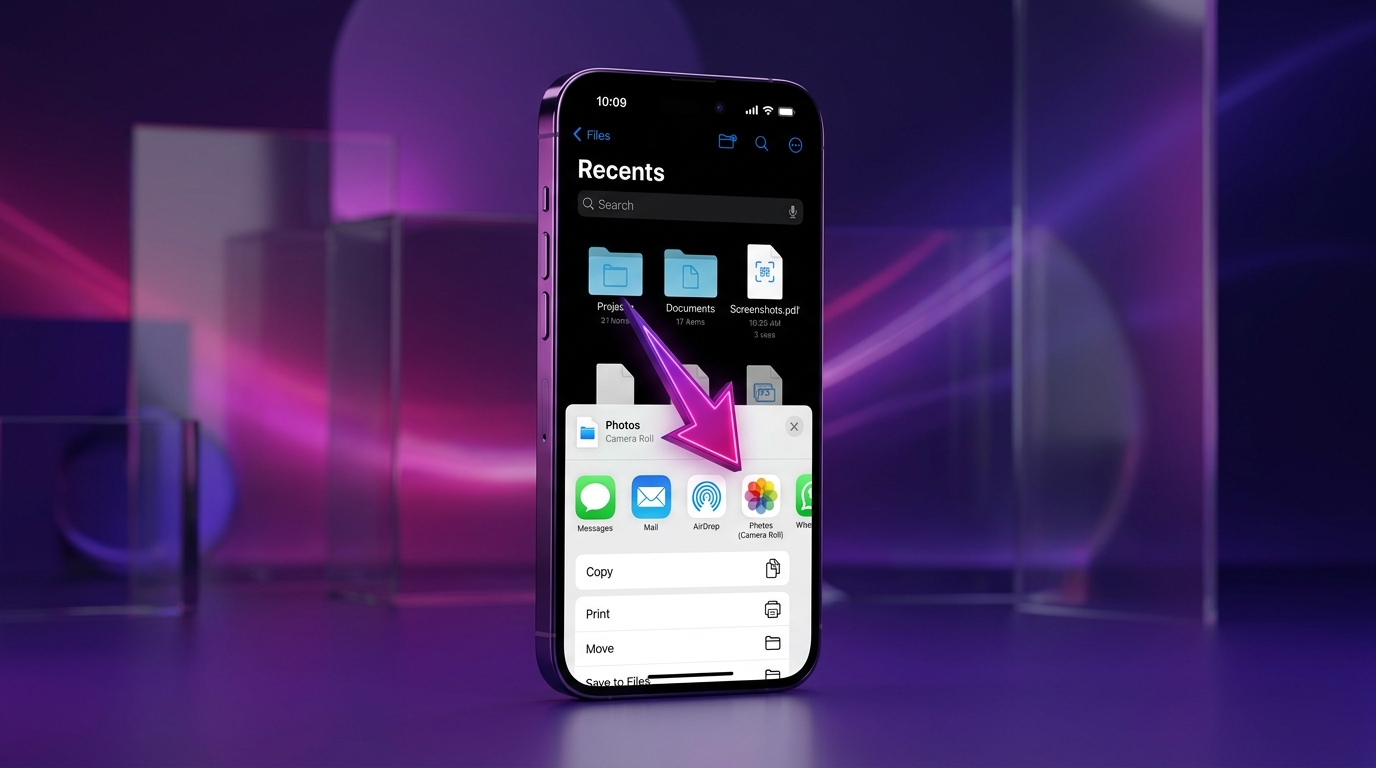
On an iPhone, downloaded Instagram videos do not appear in your Photos app automatically because Safari saves web downloads to the Files app. To move an MP4 video into your Camera Roll, open the Files app, tap the downloaded video, tap the Share icon at the bottom-left, and select "Save Video". The clip will immediately index into your Photos library.
Apple's iOS operating system keeps a strict sandbox separation between files downloaded from the web and your private media gallery. Understanding this two-step process saves you time and eliminates the frustration of wondering where your downloaded files disappeared to.
[ẢNH: Step-by-step visual diagram illustrating Safari download popup to iOS Files app, concluding with the Share Sheet Save Video button]
Where does Safari save downloaded Instagram videos by default?
When you tap a download button in Safari on iOS, the browser routes the file directly into Apple's Files app. By default, iOS stores these downloads in one of two places depending on your system configuration:
- iCloud Drive Downloads: If you have iCloud Drive enabled, Safari usually places downloaded MP4 files in the "Downloads" folder stored in the cloud. This allows the file to sync across your iPad or Mac if you use the same Apple ID.
- On My iPhone Downloads: If your device is configured for local storage or iCloud Drive is full, the file lands in the local "Downloads" directory on your phone's physical storage chip.
You can easily locate the file right after downloading:
- Look at the address bar in Safari. You will see a small circular blue download arrow next to the URL.
- Tap that download arrow, and a popup list will show your recently downloaded MP4 file.
- Tap the magnifying glass icon next to the file name to jump directly to its exact folder location inside the Files app.
If you are downloading vertical short videos, our Instagram Reels Downloader delivers progressive MP4 files that Safari can download without needing third-party helper apps.
How do you move an MP4 video from Files into the Photos app?
Once your video file is located in the Files app, moving it to your Camera Roll takes only a few taps:
- Open the Files app on your iPhone (it has a blue folder icon on a white background).
- Tap the Browse tab at the bottom-right corner and navigate to your Downloads folder.
- Tap on the video file to open the full-screen playback preview.
- Tap the Share icon (a square with an arrow pointing upwards) located at the bottom-left corner of the screen.
- In the action menu that slides up, scroll down and tap Save Video.
- Open your Photos app and navigate to the Library or Recents album. Your downloaded Instagram video will appear at the bottom as the newest item.
Once saved to Photos, the video behaves just like any clip shot on your iPhone camera. You can edit the clip using iOS editing tools, trim its start and end points, add it to custom albums, or AirDrop it to family and friends.
[ẢNH: Detailed screenshot walkthrough showing the iOS Share menu with the 'Save Video' button highlighted]
Why is the "Save Video" option missing from the Share menu?
Occasionally, you might tap the Share icon in the Files app and discover that the "Save Video" option is missing entirely. This usually happens for one of three reasons:
1. The download did not complete 100%
If your internet connection was interrupted or you closed Safari before the file finished transferring, you may have an incomplete temporary file (often ending in a .download extension). iOS cannot save an incomplete data stream to Photos because the MP4 container headers are missing. Return to SnapVideo and trigger the download again over a stable Wi-Fi or cellular network.
2. The file is packaged inside a ZIP archive
If you downloaded a multi-photo carousel post as an archive using our Instagram Photo Downloader, the file will arrive as a .zip archive rather than a single MP4 or JPEG. iOS cannot move a raw ZIP container directly into Photos. Simply tap the ZIP file once inside the Files app; iOS will automatically extract the contents into an uncompressed folder. Open that folder, select the photos or videos, tap Share, and then tap "Save Images" or "Save Video".
3. iOS Privacy Permissions
In rare cases, your device settings may restrict the Files app from writing to your Photo library. Open Settings > Privacy & Security > Photos, scroll down to find Files, and ensure that permission is set to Full Access or Add Photos Only.
How can you configure Safari to save files to local iPhone storage?
If you prefer to keep all your Instagram downloads strictly on your local phone storage rather than using up your iCloud storage quota, you can adjust Safari's default download target in iOS settings:
- Open the Settings app on your iPhone.
- Scroll down and tap Safari.
- Under the General section, tap Downloads.
- Change the selection from iCloud Drive to On My iPhone.
- You can also specify an exact custom folder if you want to keep Instagram clips separated from work documents or school files.
From that point forward, all videos saved from our Instagram Video Downloader will land directly on your device storage without consuming iCloud bandwidth.
Does transferring the video to Photos reduce its visual quality?
No. When you tap "Save Video" in the iOS Share Sheet, Apple's operating system does not re-encode, transcode, or compress the video file. It performs a direct, lossless bitstream copy from the sandboxed Files directory into your Photos database.
The MP4 video retains the exact resolution, framerate, and audio bitrate that was delivered by Instagram's servers. If you want to understand how video compression and resolution interact when downloading from Instagram, read our detailed analysis on why downloaded Instagram videos look blurry.
[ẢNH: Comparison infographic showing that iOS Files to Photos transfer keeps exact file size and SHA-256 hash intact]
Frequently Asked Questions
Can I save Instagram videos directly to Photos without using the Files app?
On iOS, third-party websites operating in mobile Safari cannot bypass Apple's security sandbox to inject files directly into the Photos database without user confirmation. Safari routes all web downloads through its native download manager into Files first. The two-tap Share > Save Video workflow is the standard, secure method across all iOS devices.
Why does my downloaded video show up as a blank audio icon?
If the file displays an audio speaker icon instead of a visual video thumbnail, the file was either saved with an incorrect file extension or the video stream failed during transit. Ensure the file has a .mp4 extension. If the problem persists, refresh the page and re-download the link.
Where can I find the downloaded file if I accidentally cleared Safari's download list?
Clearing the download manager list in Safari only clears the temporary browser history; it does not delete the actual file from your phone. Open the Files app, tap the Browse tab, and open the Downloads folder to find your saved video.
Is SnapVideo free to use on iPhone?
Yes, SnapVideo is completely free on mobile Safari. You do not need to install third-party App Store applications, configure VPN profiles, or create an account.