
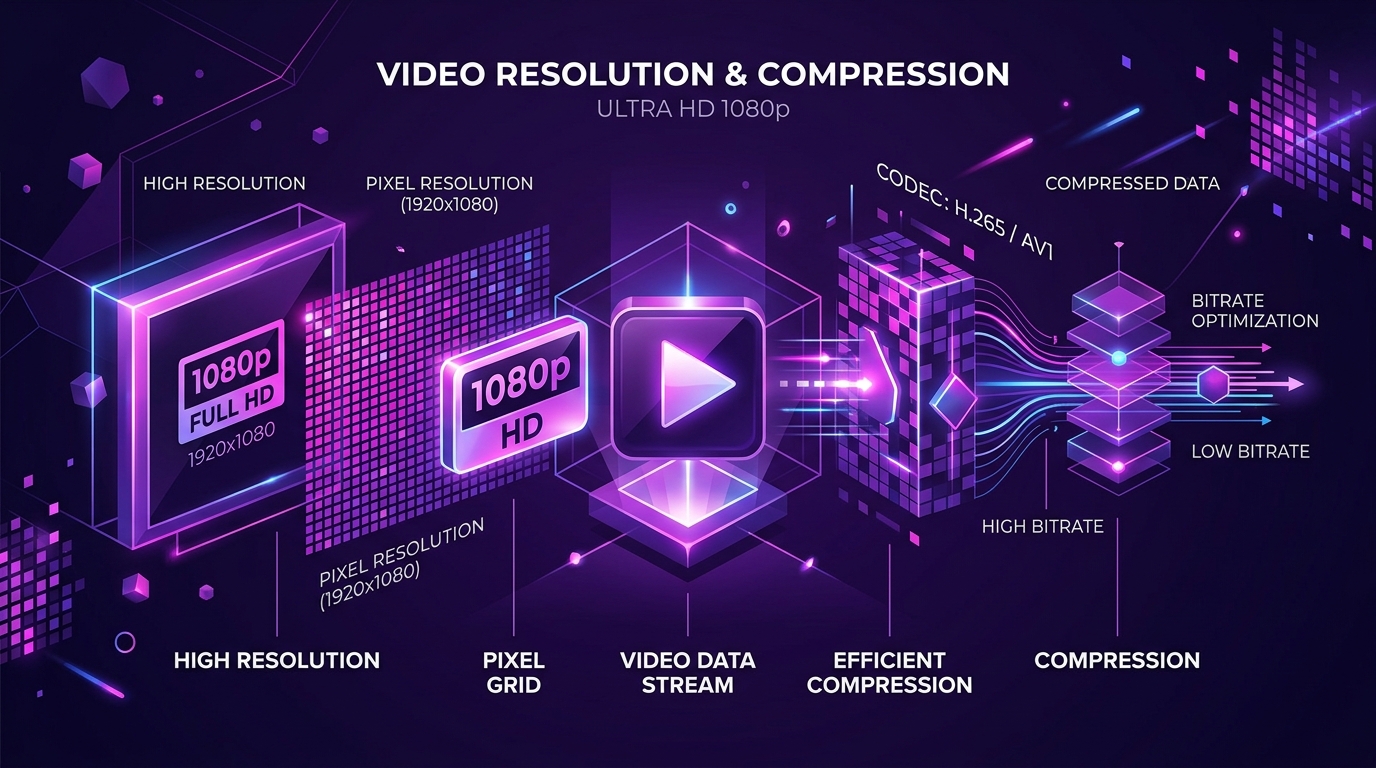
When a downloaded Instagram video appears blurry, pixelated, or lower quality than expected, the issue is almost always caused by aggressive server-side compression by Instagram's CDN or viewing a low-resolution thumbnail preview instead of the actual MP4 file. Instagram caps feed video uploads at 1080p and compresses the bitrate to conserve network bandwidth across mobile devices. Online downloaders cannot upscale or enhance missing pixels beyond what Instagram's delivery servers return.
If you save a video expecting cinema-grade crispness, you might feel disappointed when you zoom in on your desktop monitor or high-end smartphone. Understanding how Instagram processes video, how resolution interacts with bitrate, and how your device handles local playback will help you get the cleanest offline copy possible.
[ẢNH: Infographic comparing Instagram's video processing pipeline from mobile upload, CDN compression with H.264/AAC, down to final MP4 download inspection]
Why does a 1080p Instagram video still look soft on your screen?
A file with 1080p dimensions does not automatically guarantee a sharp, crystal-clear picture. Resolution only describes the grid of horizontal and vertical pixels (such as 1080x1920 pixels for a vertical 9:16 Reel or 1080x1080 for a square post). The real factor that determines clarity during motion is bitrate.
Bitrate measures the volume of video data processed per second, typically recorded in megabits per second (Mbps). When a creator uploads an uncompressed 4K video shot on a camera at 50 Mbps, Instagram immediately transcodes that video. The platform re-encodes the stream down to approximately 2.5 to 4.5 Mbps at 1080p resolution. In scenes with rapid movement—such as skateboarding, dancing, sports, or fast camera pans—this lower bitrate struggles to preserve fine details, creating visible macro-blocking, artifacting, and edge softness.
The display you use to view the saved video also plays a significant role. If you play a 1080p video on a large 4K computer monitor or a modern tablet with a dense pixel grid, your operating system must stretch those 1080 pixels across thousands of physical screen pixels. What looked reasonably sharp on a compact 6-inch phone display can appear noticeably softer when enlarged on a 27-inch desktop screen.
Are you viewing the real MP4 file or just a preview thumbnail?
One of the most frequent mistakes users make when judging video quality is evaluating an in-browser preview thumbnail rather than the actual saved MP4 container.
When you paste an Instagram link into an online tool or inspect a post on Instagram web, the interface often displays a static cover image (thumbnail) or a low-bitrate streaming preview designed to load rapidly over slow cellular connections. These preview images are frequently compressed down to 640x640 or 720x1280 pixels. If you pause the preview or take a screenshot of your browser window, you are capturing that low-resolution preview frame, not the underlying video data.
To inspect the true visual quality of your video:
- Complete the download so the MP4 file lands fully in your device storage.
- Open the file in a standalone media player like VLC Media Player on Windows or Mac, or your native phone gallery (Google Photos on Android or Photos on iOS).
- Check that the file size matches an actual video file (usually between 5 MB and 40 MB for standard clips) rather than a tiny thumbnail file under 500 KB.
If you are downloading vertical short videos, using a dedicated Instagram Reels Downloader ensures you retrieve the direct vertical progressive stream rather than an embedded widget preview.
Can online downloaders upscale Instagram videos to 4K?
No web tool can genuinely upscale an Instagram video to native 4K resolution. Any service claiming to deliver "4K Ultra HD Instagram Downloads" is using misleading marketing claims or applying an artificial sharpening filter that often introduces unnatural edge halos and noise.
Instagram does not store consumer feed videos or Reels in native 4K on its distribution servers. When a creator uploads 4K footage, Instagram's ingest pipeline immediately downscales the dimensions to a maximum width or height of 1080 pixels. Because the 4K source file is permanently discarded during Instagram's ingest processing, the highest quality file that exists on Instagram's Content Delivery Network (CDN) is that 1080p transcode.
A legitimate download tool acts as a direct retrieval bridge: it inspects the public post link, locates the highest-bitrate progressive MP4 rendition that Instagram's CDN serves, and passes that exact file directly to your browser. It cannot invent visual information that was already stripped during the initial upload.
[ẢNH: Close-up comparison of native 1080p video pixels versus artificial 4K digital sharpening artifacts]
How does Instagram's compression pipeline affect different video formats?
Instagram handles different video formats through tailored encoding profiles depending on where the content appears in the app.
| Format Type | Native Dimensions | Target Bitrate Range | Common Compression Artifacts |
|---|---|---|---|
| Instagram Reels | 1080 x 1920 (9:16) | 3.0 – 5.0 Mbps | Motion blur during fast pans; background banding |
| Feed Video Posts | 1080 x 1350 (4:5) or 1080 x 1080 | 2.5 – 4.0 Mbps | Minor compression around text overlays |
| Instagram Stories | 720 x 1280 or 1080 x 1920 | 1.5 – 2.8 Mbps | Higher compression noise due to ephemeral delivery |
| Carousel Video Slides | 1080 x 1080 (1:1) | 2.0 – 3.2 Mbps | Lower bitrate budget per slide to keep album load times fast |
Reels generally receive the highest bitrate allocation on Instagram because vertical short-form video is the platform's primary entertainment format. Standard feed videos also maintain reasonable fidelity, especially for static talking-head clips, tutorials, and landscape presentations. You can save standard feed posts using our Instagram Video Downloader to preserve those progressive MP4 streams.
Conversely, temporary Stories receive more aggressive compression because they are designed to vanish after 24 hours and must load instantly on mobile networks. If a creator posts the exact same video clip to both their Stories and their Reels feed, downloading the Reel version will almost always yield a noticeably crisper file with higher audio fidelity.
How can you inspect video metadata on your device?
To verify whether your downloaded video is actually 1080p or a lower resolution stream, you can inspect the container metadata directly without installing third-party apps:
On Windows PC:
- Locate the downloaded MP4 file in your Downloads folder.
- Right-click the file and select Properties.
- Click the Details tab.
- Scroll down to the Video section to check Frame width, Frame height, and Total bitrate. A full-resolution vertical Reel should show a frame width of 1080 and a frame height of 1920.
On Mac:
- Open Finder and locate your video file.
- Select the file and press Command + I (Get Info).
- Expand the More Info section to inspect the dimensions and audio channels.
On iPhone and iPad:
- Save the downloaded MP4 from the Files app into your Photos library. If you need step-by-step guidance on moving files from Safari downloads, read our guide on how to save Instagram videos to iPhone Camera Roll.
- Open the video in the Photos app and swipe up on the screen.
- Review the metadata badge beneath the playback bar, which displays the file format (MP4), resolution (e.g., 1080p), and file size in megabytes.
On Android:
- Open Google Photos or your default Gallery app.
- Select the downloaded video and swipe up or tap the three-dot menu icon.
- Review the file resolution details displayed in the information panel.
[ẢNH: Side-by-side screenshots showing file metadata properties on Windows File Explorer and iOS Photos info card]
What can you do to ensure you get the best possible download?
While you cannot alter the way Instagram encodes a creator's video, you can take practical steps to ensure you download the cleanest available stream:
- Download from the original source post: Avoid downloading screen recordings or videos that have been re-shared through messaging apps, as each transfer adds another generation of lossy compression. Always obtain the link from the original creator's public post on Instagram Downloader.
- Verify that the post plays crisply in a web browser: Open the post URL in a new browser tab. If the video looks blurry directly on Instagram.com, the original upload was low-resolution or shot on an older camera sensor.
- Ensure the download finishes completely: If you have an unstable mobile internet connection, a download may interrupt prematurely, leaving a truncated video file that stutters or exhibits green screen artifacting.
- Save files in their native MP4 container: Avoid third-party converter tools that re-render MP4 into other formats (such as AVI or WMV), which introduces a secondary loss of visual clarity.
Frequently Asked Questions
Does re-downloading the same video improve its quality?
No. Re-downloading the same link will simply fetch the identical MP4 stream stored on Instagram's servers. If the video was soft on your first download, fetching it again will not increase resolution or bitrate.
Why do fast-motion scenes in Reels look more pixelated than static scenes?
Instagram's video encoder uses variable bitrate compression that allocates fewer bits to complex motion than uncompressed video requires. High-speed action like running water, falling confetti, or sports causes temporary bitrate starvation, producing blocky compression artifacts during those frames.
Does downloading Instagram videos cost anything on SnapVideo?
No, our tools are free to use without subscriptions, hidden paywalls, or account registration.
Is it legal to download Instagram videos for personal use?
It depends on how you use the file. Saving public videos for personal, offline viewing is generally low-risk, but copyright belongs to the original creator. Do not re-upload, sell, or use downloaded media commercially without permission from the rights holder.