
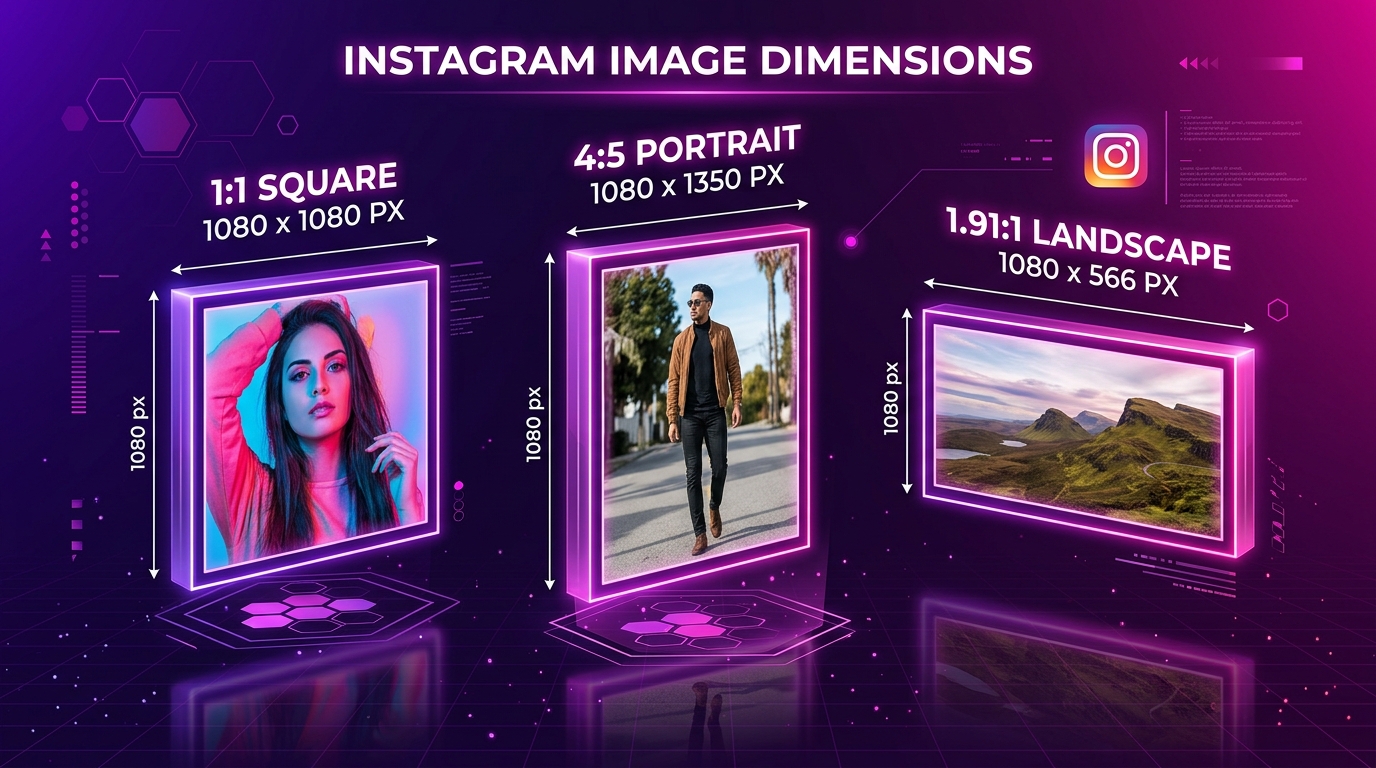
Instagram supports three primary image aspect ratios for feed posts: Square (1:1 at 1080x1080 pixels), Portrait (4:5 at 1080x1350 pixels), and Landscape (1.91:1 at 1080x566 pixels). Any image uploaded outside these proportional boundaries is automatically cropped or downsampled by Instagram's ingest pipeline, often causing unwanted blur and jagged edges. Understanding these exact dimension standards ensures your uploaded photos stay crisp and your downloaded files retain maximum fidelity.
Whether you are a creator formatting visual posts for maximum screen real estate, a photographer archiving your work, or a user saving inspiring photography to your device, knowing how Instagram handles aspect ratios helps you avoid unexpected cropping and resolution loss.
[ẢNH: Visual comparison chart illustrating the 3 main feed post ratios: 1:1 Square, 4:5 Vertical Portrait, and 1.91:1 Horizontal Landscape with exact pixel measurements]
What are the official dimensions for each Instagram format?
Instagram standardizes all feed photography to a maximum width of 1080 pixels, while varying the vertical height based on the chosen aspect ratio:
| Format Type | Ideal Aspect Ratio | Recommended Resolution | Best Use Case |
|---|---|---|---|
| Square Feed Posts | 1:1 | 1080 x 1080 pixels | Classic grid photography, quotes, product showcases |
| Portrait / Vertical Posts | 4:5 | 1080 x 1350 pixels | Fashion, mobile portraits, infographics (Maximum screen size) |
| Landscape / Horizontal Posts | 1.91:1 | 1080 x 566 pixels | Wide scenic panoramas, architecture, cinematic group shots |
| Stories & Highlights | 9:16 | 1080 x 1920 pixels | Full-screen vertical mobile immersion |
| Profile Avatars | 1:1 (Circular crop) | 1080 x 1080 pixels | Account brand identity and profile photos |
If you download images from Instagram using our Instagram Photo Downloader, the file you receive will match the exact pixel grid that Instagram stores on its servers for that aspect ratio.
Why is the 4:5 Portrait ratio the most popular for feed posts?
The 4:5 portrait ratio (1080 x 1350 pixels) is widely considered the gold standard for Instagram feed photography because it occupies the maximum vertical screen space allowed in the mobile feed.
On a smartphone screen, a horizontal landscape post (1080 x 566) fills less than half of the visible display, leaving the viewer's attention vulnerable to competing posts above and below it. A 4:5 portrait post, by contrast, commands nearly the entire mobile viewport, providing 2.3 times more visual area than a landscape crop.
This expanded vertical canvas allows photographers and designers to showcase intricate details without forcing the viewer to pinch and zoom. If you want to download an entire carousel containing multiple portrait slides, our Instagram Downloader extracts each slide in its full 1080x1350 resolution.
[ẢNH: Mobile screen comparison showing how a 4:5 portrait post dominates the feed viewport compared to a narrow 1.91:1 landscape post]
Why does Instagram crop or blur photos uploaded with different ratios?
When you upload an image to Instagram, the app enforces strict cropping boundaries:
The 4:5 Height Boundary
If you attempt to post a vertical photograph shot in full smartphone ratio (such as a 9:16 ratio or 1080 x 1920 pixels) directly to your standard feed, Instagram will force a crop. The app will slice off the top and bottom of your image to fit the mandatory 4:5 (1080 x 1350) height limit. If important elements (such as subject heads or typography) sit near the outer margins, they will be cut out.
Downsampling and Recompression
If you upload an oversized image file (such as a 45-megapixel camera RAW export with dimensions like 6000 x 4000 pixels), Instagram will not store that giant file. The ingest pipeline forcefully downscales the image to a width of 1080 pixels. If this downsampling is handled by Instagram's automated web encoder rather than pre-formatted in your editing software, you will notice softness, jagged lines, and color banding.
To learn more about how server-side compression impacts visual clarity across all media types, read our analysis on why downloaded Instagram videos look blurry.
How does the profile grid affect image framing?
While your posts display in their native 1:1, 4:5, or 1.91:1 ratios inside the scrolling feed, Instagram's profile page automatically crops all posts into uniform 1:1 squares:
- Center-Weighted Thumbnail: For 4:5 portrait photos, Instagram displays only the central square of the image on the profile grid, hiding the top and bottom 135 pixels from the thumbnail view.
- Side Cropping for Landscape: For horizontal photos, the profile thumbnail crops the left and right wings of the panorama to form a square.
When you download a photo using SnapVideo, you are not downloading the square profile grid crop. You receive the complete, uncropped master file that the creator uploaded, ensuring that framing and compositions remain intact.
If you are inspecting account avatars and want to bypass the circular thumbnail crop, read our guide on how to view and download full-size Instagram profile pictures.
[ẢNH: Diagram showing a 4:5 portrait image overlaid with Instagram's 1:1 square profile grid crop box to demonstrate safe-zone framing]
How do you calculate dimensions for seamless panoramic split carousels?
A popular creative technique among landscape photographers and digital artists is the seamless panoramic carousel, where a single wide panoramic photo is sliced into multiple consecutive square or portrait slides:
- Two-Slide Seamless Square (2:1): If you slice a panorama across 2 square slides, design your master canvas at 2160 x 1080 pixels (2 slides of 1080x1080).
- Three-Slide Seamless Square (3:1): Design your canvas at 3240 x 1080 pixels (3 slides of 1080x1080).
- Two-Slide Seamless Portrait (8:5): For maximum vertical impact, design across 2 portrait slides at 2160 x 1350 pixels (2 slides of 1080x1350).
- Three-Slide Seamless Portrait (12:5): Design across 3 portrait slides at 3240 x 1350 pixels.
When published on Instagram, viewers swipe seamlessly across the slides with no visible gap between frames. If you download a seamless carousel using our Instagram Photo Downloader, you can save all split pieces in a single ZIP file to reconstruct the original master panorama in graphic editing software.
How can you format images before uploading to prevent quality loss?
To achieve the sharpest possible presentation on Instagram:
- Pre-crop to exact target ratios: Use Lightroom, Photoshop, Canva, or your phone's native editor to crop your image to 4:5 (1080x1350) or 1:1 (1080x1080) before importing it into the Instagram app.
- Export with sRGB color space: Instagram's display engine uses the standard sRGB color profile. Uploading images in wider profiles like Adobe RGB or ProPhoto RGB can cause colors to appear washed out or muddy.
- Sharpen for web output: Apply a gentle output sharpening pass calibrated for 1080-pixel width to ensure fine textures and edges remain crisp after Instagram's JPEG compression.
Frequently Asked Questions
Can an Instagram feed post ever exceed 1080 pixels in width?
No. Instagram standardizes all feed photos and carousels to a maximum width of 1080 pixels. Even if you upload a 4K or 8K file, Instagram resizes the width to 1080 pixels.
Why do multi-photo carousels force all slides into the same ratio?
In a carousel post, the aspect ratio of the very first slide determines the cropping window for all subsequent slides in that album. If your first slide is a 1:1 square, Instagram will automatically crop all following portrait or landscape slides into 1:1 squares.
What is the best aspect ratio for Instagram Stories?
Instagram Stories and Reels use a 9:16 vertical aspect ratio with recommended dimensions of 1080 x 1920 pixels.
Does SnapVideo alter the aspect ratio of downloaded photos?
No. SnapVideo delivers the exact JPEG asset served by Instagram's CDN servers without altering margins, cropping boundaries, or color profiles.